For busy professionals
Talk it out, and it comes back as notes, tasks and flows
Record the meeting, dictate the email or capture an idea between calls, and it all lands as text in your notebook. The assistant turns it into tasks and cards with your approval, and autocomplete helps you finish what you write.
Free to start · No card · Windows, macOS and Linux

How it works
Capture by voice
Record the meeting or dictate a message, a document or a quick note in any app on your computer.
Let the AI sort it
Ask for a summary with next steps and the assistant turns them into tasks. It proposes and you approve every change.
Follow it through
Your tasks carry a date, a project and a timer, and you can pin up to five on your desktop.
What the day really costs you
Work gets lost between what’s said and what’s written down.
- One meeting after another and nothing gets written down
- Typing word by word what you already worked out in your head
- Notes spread across apps that don’t talk to each other
- Follow-ups stuck in a note you’ll never open again
Write by talking
Dictate the email, the message or the document in any app and clean text appears at your cursor. While you type, autocomplete suggests how to continue and you accept with Tab.
Your meetings, without taking notes
Whisperall records your video call from your computer, without adding a bot, or the in-person meeting with your microphone. The transcript lands in your note with every voice separated, and when it ends you ask for the summary with next steps.
If your team keeps meeting minutes, ask the assistant to write them in the format you use.

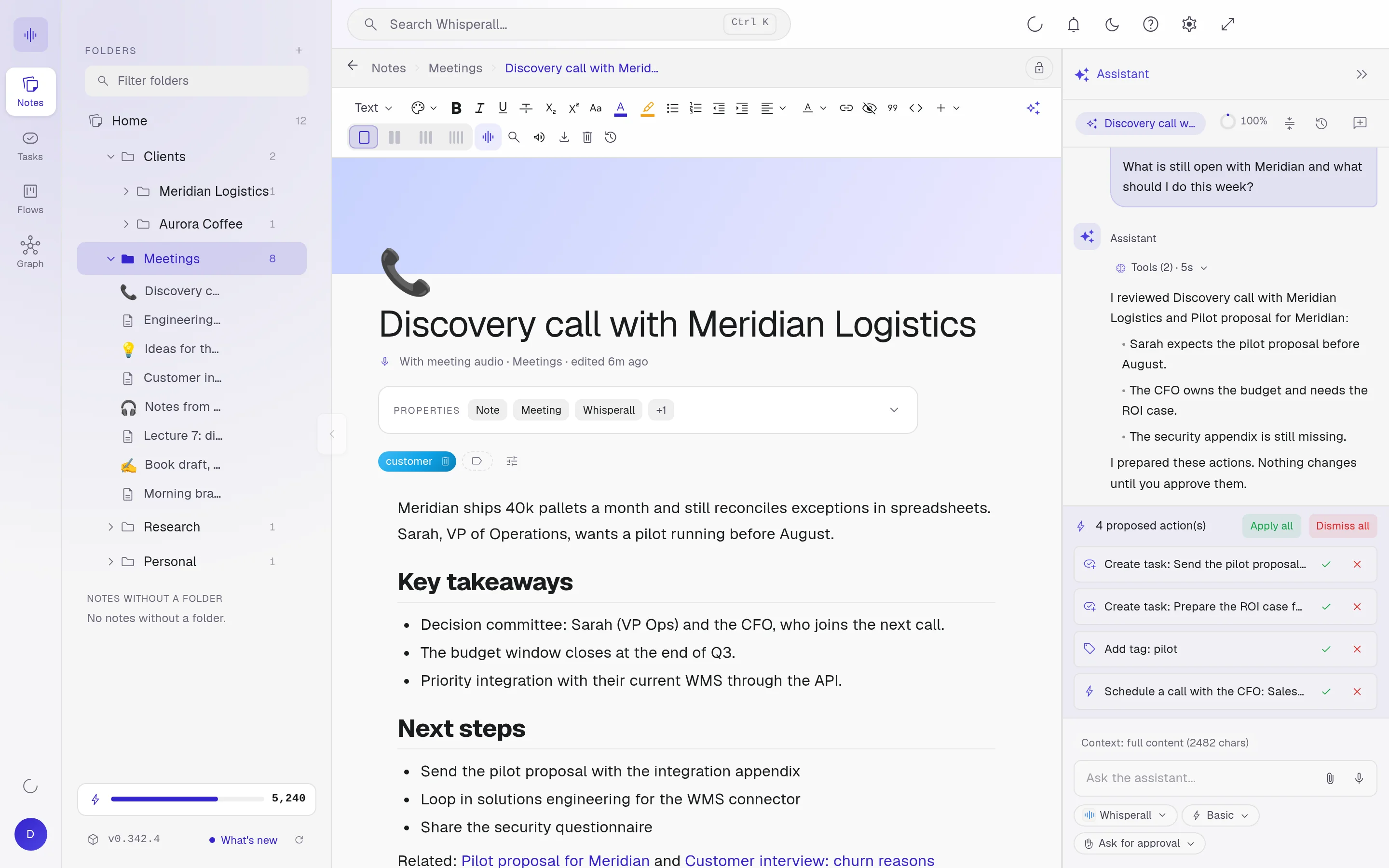
One notebook for everything
The note, the task and the flow stay linked. Search your notes and tasks with Ctrl+K or ask the assistant to search your whole notebook, and listen to a long note read aloud instead of rereading it.
How professionals use it
A few concrete ideas for your next week.
- Dictate an email without filler words or false starts
- Capture an idea by voice between two meetings
- Turn a spoken plan into tasks with dates and a timer
- Listen to a long document instead of rereading it
- Keep notes, tasks and flows linked in one place
- Ask the assistant what was agreed in Tuesday’s meeting
- Review every change your AI proposes before it touches your document
Frequently asked questions
No. Whisperall records your computer’s audio and your microphone, so nobody else joins the call. On a Mac you need macOS 15 or later for the computer’s audio.
It works with any call that plays on your computer, but it doesn’t connect to your calendar or join meetings on its own. You start the recording.
No, you ask for it in one click when the meeting ends, and it covers the whole meeting with up to six next steps. You can also ask the assistant what it was about: it reads the full transcript and walks you through it topic by topic, even a two-hour call.
Notes, tasks, flows and the graph are free forever. AI uses credits: the $9 Starter plan includes 2,000 a month, about 3.7 hours of video calls or 11 of dictation, and the $29 Pro plan includes 7,500, about 14 hours of video calls or 42 of dictation.
For now Whisperall installs on Windows, on Macs with Apple Silicon and on Linux. Android and iOS apps are on the way.
Simple enough for anyone. Powerful enough for you.
Download Whisperall free and keep your notebook forever. AI is paid with credits, only when you use it.
Windows · macOS · Linux · Android and iOS on the way

 Your AI work notebook